LDAP
Introduction
Users may now choose to maintain their own security for EDM in an LDAP. This allows users to maintain EDM in an established, secure fashion, as well as allowing for integration into existing portals, single-sign on (SSO) and other functionality.
Installation
Using the LDAP functionality will negate all changes in the policy file and will not make any further edits to the policy file. Before setting up LDAP connectivity, it is recommended to back up the policy file.
To set up the LDAP security:
- Import the provided edmschema.schema file into your LDAP. This will create a cn=edmschema under the ou=schema. This .schema file into your LDAP, installing the customized attributes and objects in a single schema.
- Import the provided edm.ldif into your LDAP. This will create an LDAP branch with o=edm (the default) as the top node. This branch will be the sole location EDM will look for information. Under this will be:
- ou=edmPermissionRoles, o=edm
- cn=edmAdminRole -- The default administrators' role
- cn=edmCentralRole -- The default central users' role
- cn=edmRemoteRole -- The default remote users' role
- ou=edmPermissionUsers, o=edm
- cn=edmDefaultUsers,ou=edmUsers,o=edm
- cn=edmAdmin,ou=edmDefaultUsers,ou=edmUsers,o=edm -- the default administrator
- cn=edmCentral,ou=edmDefaultUsers,ou=edmUsers,o=edm -- the default administrator
- cn=edmRemote,ou=edmDefaultUsers,ou=edmUsers,o=edm -- the default administrator
- The default password for the created users is "pass". It is highly recommended to change the default passwords for the default users. Users cannot make changes from EDM to the LDAP, however they can make changes to accessible information.
- Customized roles may be created using the edmRole objectClass which was imported with the edmschema.schema. The customized attributes start with "edm" and indicate an object type (such as "form" or "table") and a privilege such as "view" or "edit". Using "all" as the value for the privilege gives rights over all of the object types--over all forms for example. Specifying an object name gives rights over the specific object.
- Users need to be added to the ou=edmUsers organizational unit and specified as a member of the edmPermissionRole that they are to be a part of. Rights are only granted through the roles and cannot be granted to users.
- Log in to EDM using the admin/admin default account. This account will be deactivated after LDAP is configured.
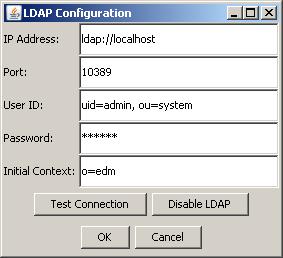
- Use the LDAP Configuration tool to input the connection information. You can test your connection information with the Test Connection button. After you press OK, you will be logged out and have to log in with the LDAP accounts using the value in the LDAP uid field. This information will be stored in an encrypted format in the config.xml and the policy file will be disabled.
- To disable the LDAP configuration, log in with a valid LDAP id and go to the LDAP Configuration tool and press the Disable LDAP button.
Usage
Users will not be able to use the default policy file or passwords to log in after the LDAP connection is configured. User information, role and permission information will be maintained by the LDAP entirely.